
Invoices, quotes and credit notes
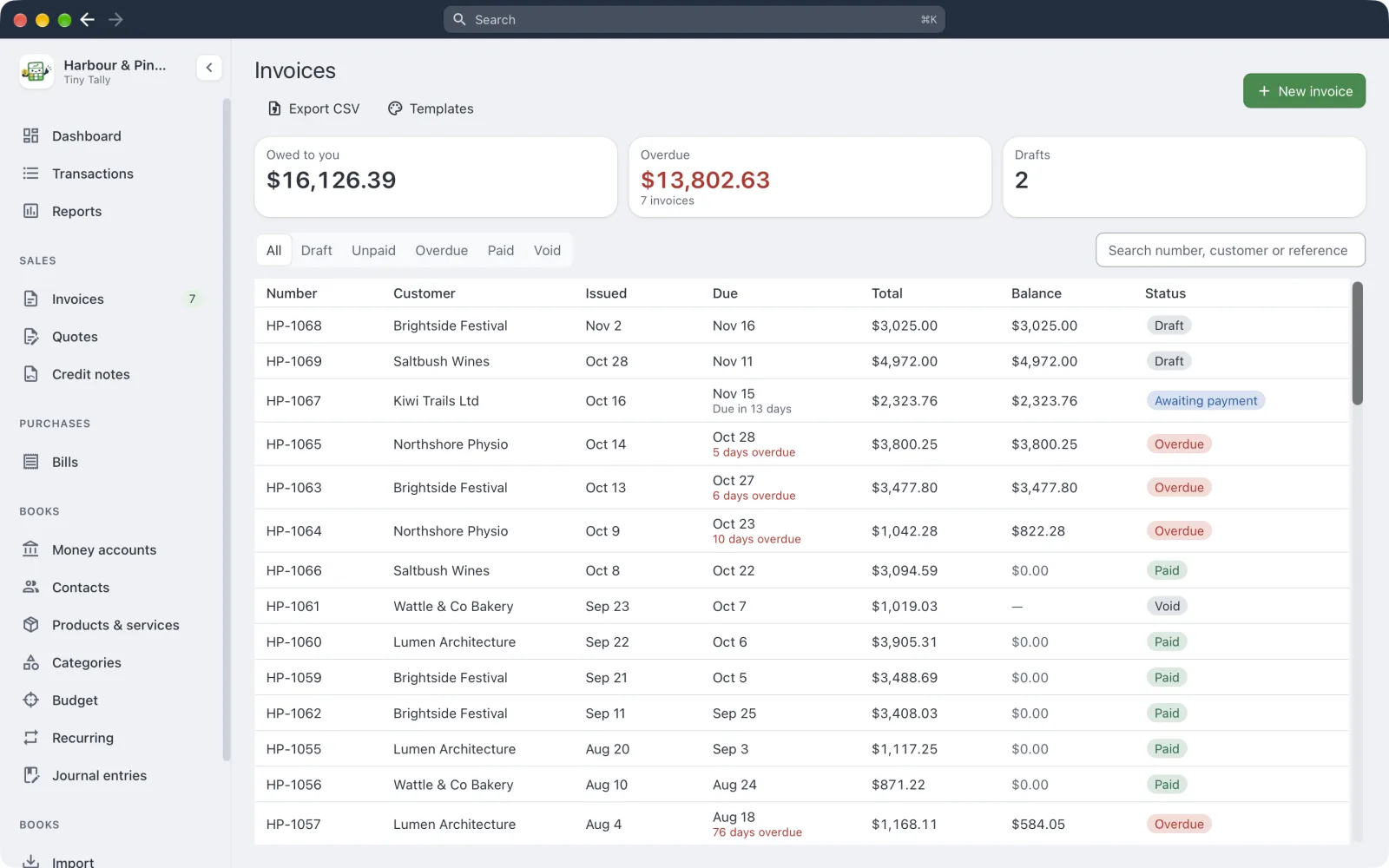 Invoices, with what's overdue
Making an invoice
New invoice (⇧⌘I), then pick the customer and add lines. Leave the number blank and the next one is used. You can also set:
- Reference: their PO number, say.
- Payment terms: due on receipt, 7, 14 or 30 days, end of next month, or a date of your own.
- Prices are GST inclusive or exclusive.
- From: which trading name it comes from, and its Template.
- Notes.
Add saved item… adds one of your products and services; Save as item keeps a line for next time.
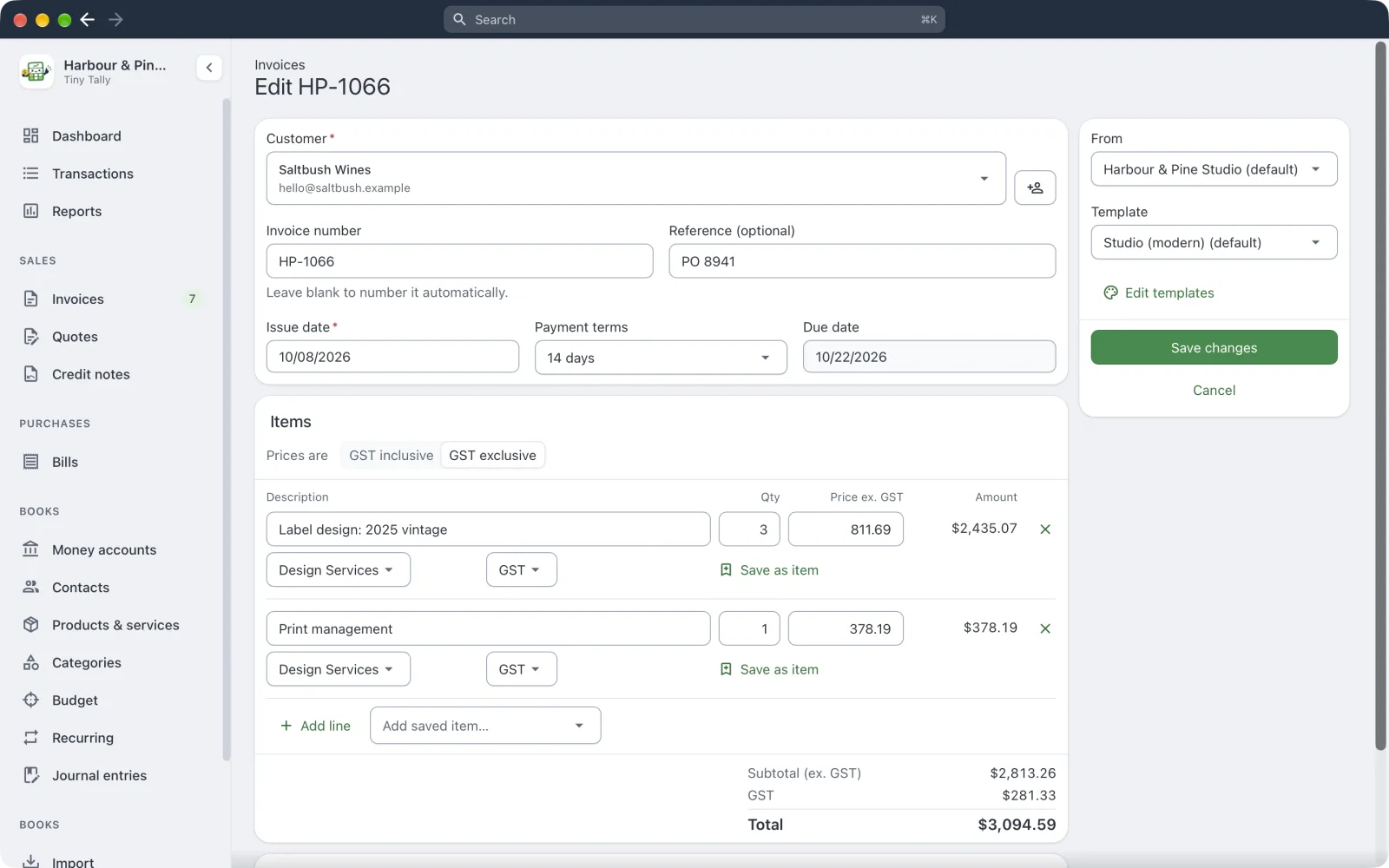 Editing an invoice
Approve & save makes it real: it gets its number and counts in your reports. Save as draft keeps it to finish later. Drafts don't count anywhere.
Sending it
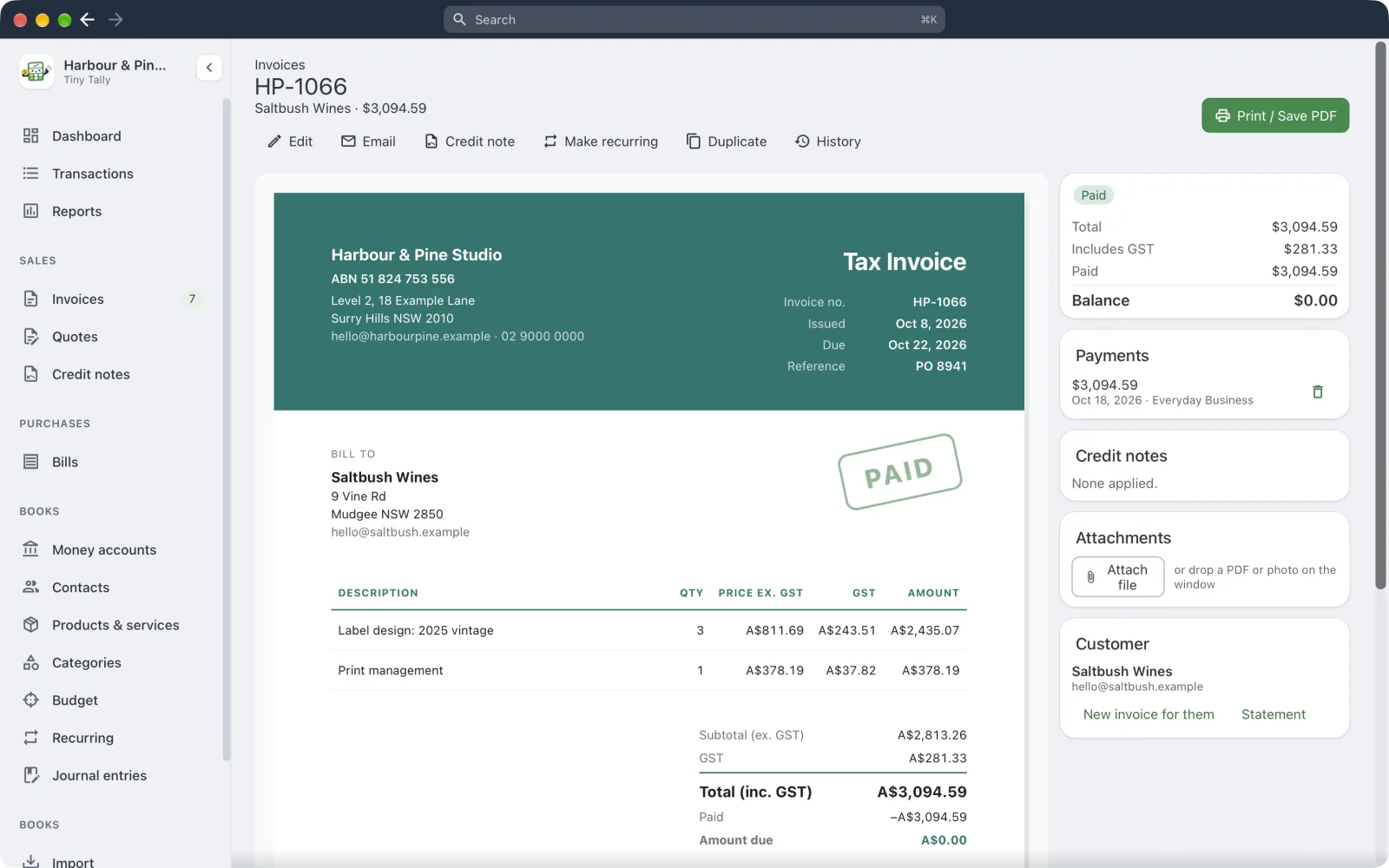 An invoice, with its payments beside it
- Print / Save PDF makes the PDF.
- Email opens a message to the customer in your mail app, with the details filled in. Attach the PDF and send it yourself; Tiny Tally never sends anything.
- Once it's overdue, the button becomes Send reminder and drafts a polite nudge.
An invoice is Draft, Awaiting payment, Part paid, Overdue, Paid or Void. The sidebar counts the overdue ones.
Getting paid
Record payment with the date, amount and the account it went into. Part payments are fine; the invoice shows what's left. Payments also appear in that account's register.
Quotes
Quotes work the same way, with Valid for instead of payment terms. A quote is Draft, Sent, Expired, Accepted or Declined. Accept & invoice turns it into an invoice with the same lines. A declined quote can be reopened.
Credit notes
To take back some or all of an invoice, choose Credit note on it. A credit note can be applied to that invoice or another one for the same customer, or refunded as money paid back.