
Recording transactions
A transaction is money that came in, went out, or moved between your own accounts. Most come in by importing; this page is about entering them yourself.
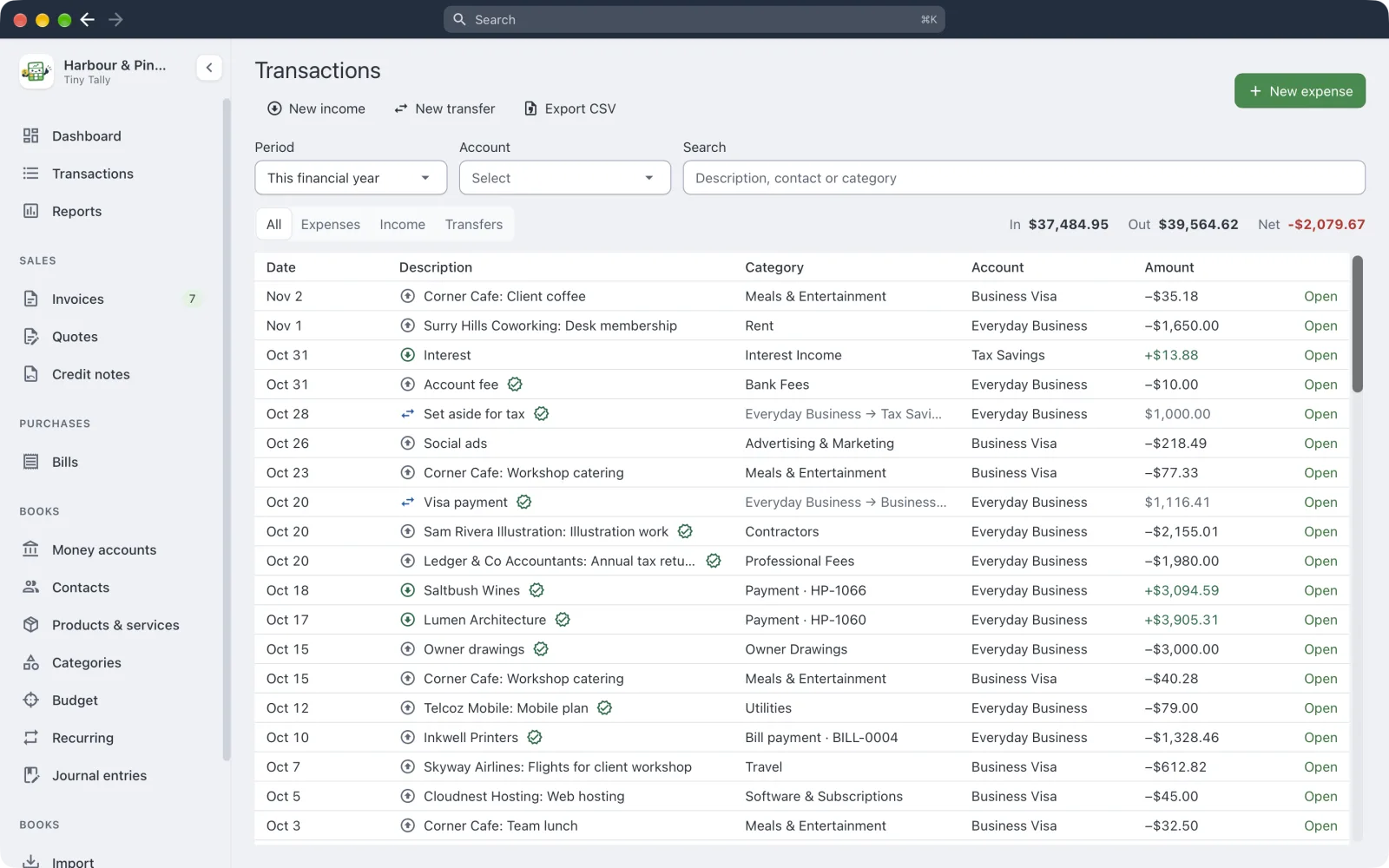 Transactions for this financial year
New expense, income or transfer
Use the buttons on the Transactions page or the dashboard, or the Transaction menu:
| Mac | Windows / Linux | |
|---|---|---|
| New expense | ⌘E | Ctrl E |
| New income | ⌘I | Ctrl I |
| New transfer | ⌥⌘T | Ctrl Alt T |
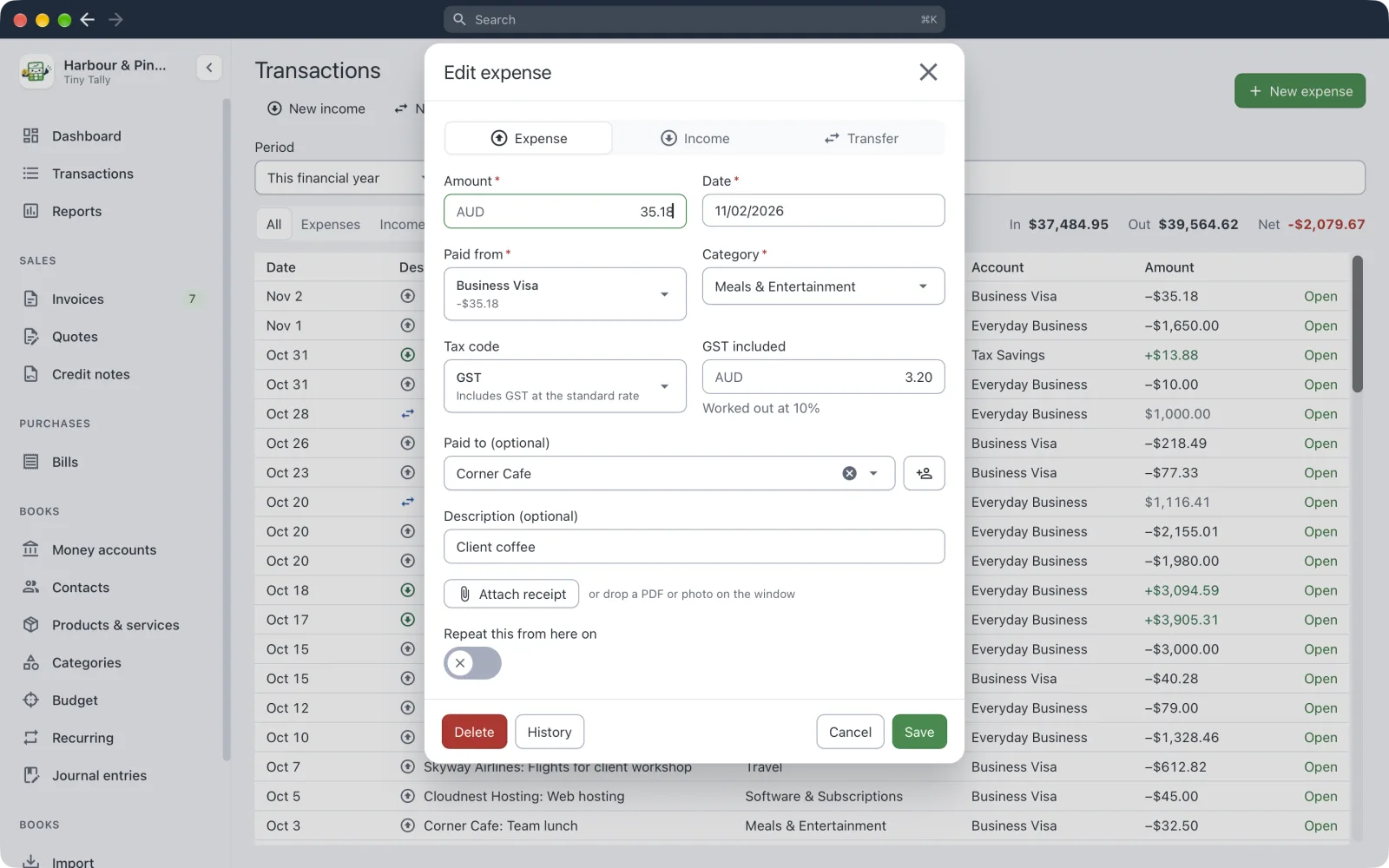 Editing an expense
Fill in the Amount and Date, the account it was Paid from (or Deposited to), and a Category. The rest is optional:
- Tax code: filled in from the category's usual tax code. Tiny Tally works out the GST or tax included; you can change the figure if your receipt says otherwise.
- Paid to or Received from: pick a contact, or add a new one right there.
- Description.
If one of your rules matches, the category is filled in for you, with a note saying which rule.
Save & new saves and starts another straight away.
A transfer moves money between two of your accounts, such as paying off a credit card or putting money aside for tax. It isn't income or an expense.
Receipts and attachments
Attach receipt, or drop a file on the window while a transaction is open. PDFs and photos (JPEG, PNG, GIF, WebP, HEIC) up to 25 MB are kept inside the books file. Big photos are shrunk to a sensible size. A paperclip shows in your lists, and you can view each file, save a copy, or remove it.
Invoices and bills take attachments the same way.
Repeating
Turn on Repeat this for things that happen on a schedule, such as rent or a subscription: every week, 2 weeks, month, 3 months or year. See Recurring transactions.
Finding and filtering
The Transactions page filters by Period, Account, a Search and the All / Expenses / Income / Transfers switch, with the money in, out and net for what's showing. The list loads more as you scroll. Export CSV saves everything that matches, not just what's loaded.
Changing and deleting
Click a transaction to open it. History shows every change to it; Delete removes it.
Payments on an invoice or bill open that document instead, since they're changed from there.
If someone changes the same transaction in another tab or window while you have it open, Tiny Tally won't let your save quietly overwrite theirs. Close it, open it again, and make your change.
Transactions on or before the lock date can't be changed.