
Tabs, windows and search
Tabs
Look at several things at once in the same window: an invoice, the customer's statement and the bank register, say.
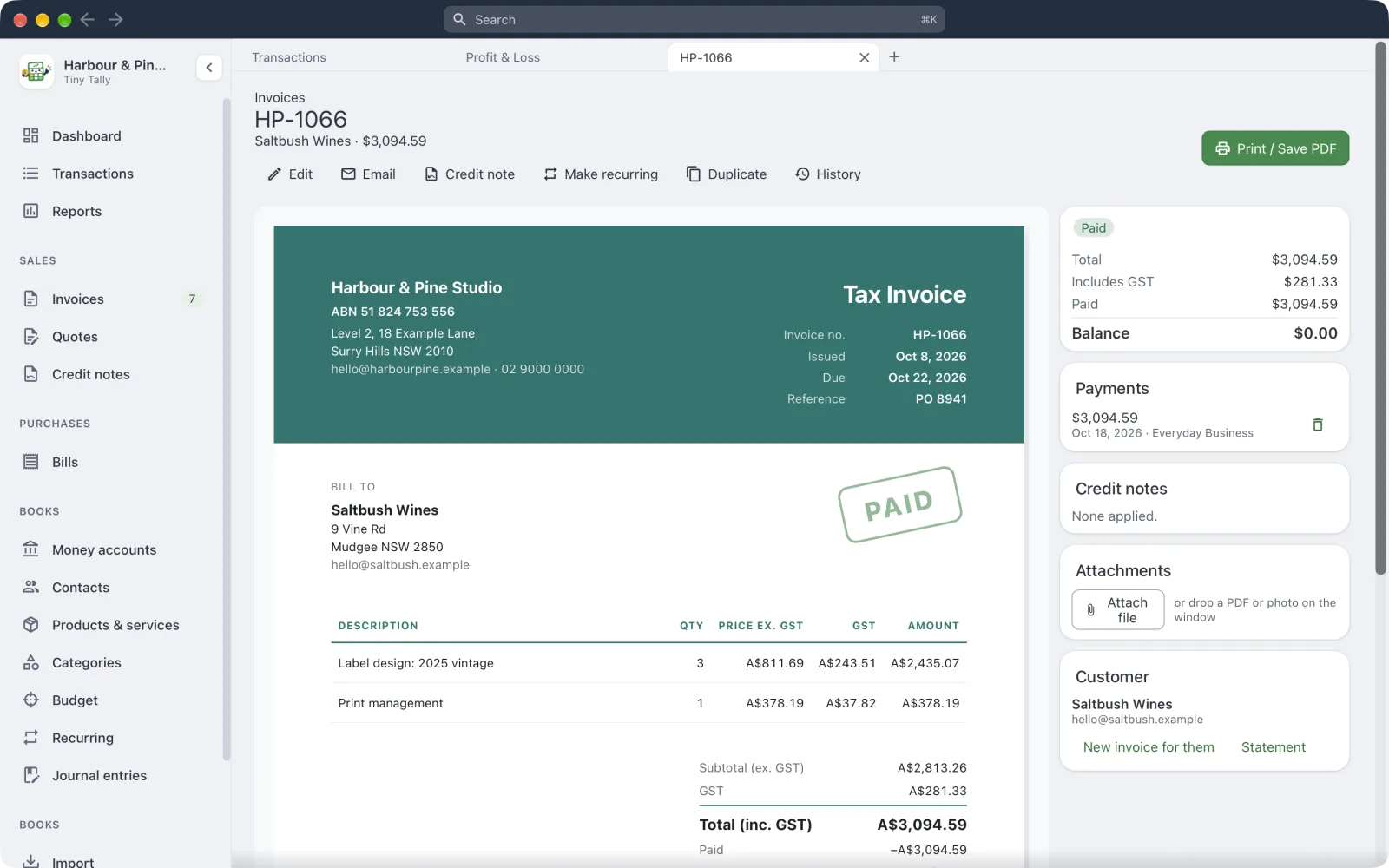 Three tabs on the same books
- New Tab: ⌘T, the + in the tab strip, or a double-click on an empty part of the strip.
- Open a link in a new tab: ⌘-click it (Ctrl-click on Windows and Linux), or middle-click. Add ⇧ to open it behind the current tab.
- Switch: click a tab, press ⌘1 to ⌘9, or ⇧⌘] and ⇧⌘[ for the next and previous.
- Close: ⌘W, the × on the tab, or middle-click it.
- Reorder: drag a tab along the strip.
- Right-click a tab for Close Other Tabs and Move Tab to New Window.
Each tab remembers where it's been, so Back and Forward (⌘[ and ⌘]) work per tab. A tab you come back to is as you left it, filters and all. Your tabs are remembered for each set of books.
Windows
New Window (⌘N) opens another window on the same books, at the page you're on. It's handy across two screens. You can also drag a tab out of the strip to give it its own window.
Every tab and window on the same books stays up to date: record a payment in one and the invoice list in another changes too.
To work on a different set of books at the same time, use Open Books… (⌘O). Each set of books opens in its own window. Give each one its own Colour in Settings so you can tell them apart.
Search
⌘K (or click Search at the top of the window) finds:
- pages and actions, like New invoice or Rules
- transactions, invoices, quotes, credit notes and bills, by description, number, contact, reference or total
- contacts, accounts and categories
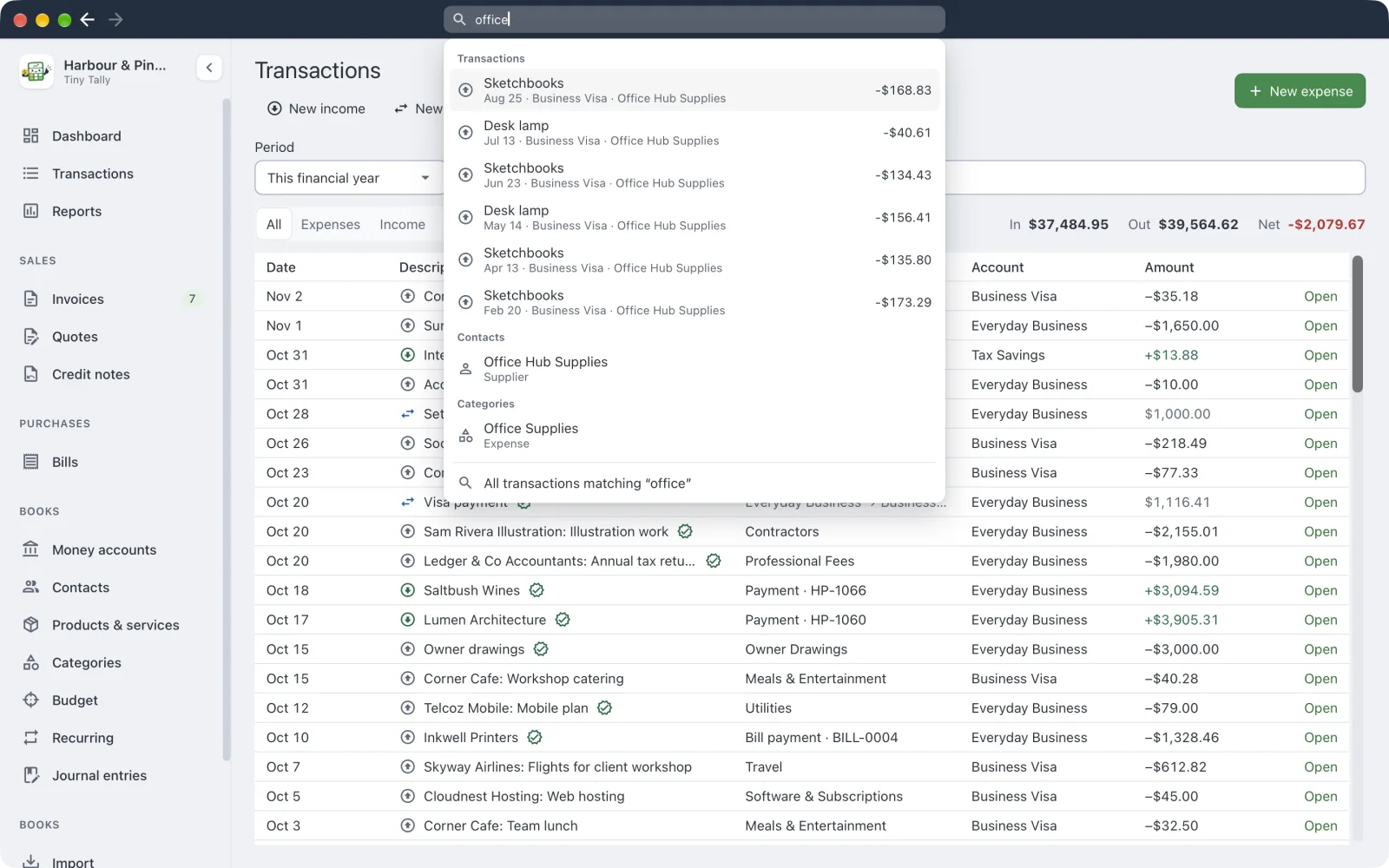 Searching for "office"
Type an amount, like 89.99 or $1,234.50, to find that exact amount.
The last result, All transactions matching…, opens the Transactions page with that search.